
How to Install the DLSS 5 Mod in DX9, DX12 & Vulkan Games
Want to experiment with the DLSS 5 mod in your favorite PC games? Installing it can be confusing, especially when different games use different graphics APIs, such as DirectX 9, DirectX 12, and Vulkan
In this guide, we’ll explain the installation process in simple, beginner-friendly steps, cover the tools you may need, and show you how to troubleshoot common problems. Whether you’re testing a compatible DX12 game or exploring other graphics APIs, this guide will help you understand the process before making changes to your game files.
Important: This is a guide to an unofficial mod, not an official NVIDIA installation method. Compatibility, performance, and visual results can vary depending on the game, mod version, and system configuration.
1. What Is the DLSS 5 Mod?
NVIDIA DLSS 5 introduces AI-powered neural rendering designed to improve visual realism in games by adding more lifelike lighting and material details. However, many PC gamers are also interested in community-made DLSS 5 mods that experiment with this technology in games that do not officially support it.
Unlike a standard graphics setting, an unofficial DLSS 5 mod may require additional tools, modified game files, or a compatible rendering setup. The exact method depends on the game and its graphics API.
How Does the DLSS 5 Mod Work?
DLSS 5 uses neural rendering to enhance a game’s visual appearance. Community modding tools attempt to make this technology work in additional games by integrating or injecting the required components into the game’s rendering pipeline.
Depending on the implementation, this process may involve replacing existing DLL files or using tools such as ReShade, RenoDX, or other compatible wrappers. Not every tool supports every game or graphics API, so compatibility must be checked before installation.
Can You Use DLSS 5 in Any Game?
No. Although community projects aim to extend compatibility, results vary between games. Some setups may work with supported DirectX configurations, while others may require additional steps or may not work at all.
Performance can also vary. Neural rendering requires additional GPU resources, and an unofficial implementation may introduce visual artifacts, crashes, or reduced frame rates.
Before you continue: This guide focuses on experimenting with unofficial DLSS 5 mod implementations. These are separate from NVIDIA’s officially supported DLSS 5 integration. Always check the specific mod’s documentation, back up your original game files, and avoid using injected mods in multiplayer games protected by anti-cheat software.
2. Requirements Before Installing the DLSS 5 Mod
Before installing the DLSS 5 mod, make sure your PC and game meet the requirements of the specific mod version you plan to use. Compatibility depends on your graphics card, game, rendering API, and installation method.
1 Compatible Graphics Card
The supported hardware depends on the implementation. NVIDIA’s official DLSS 5 has different requirements from unofficial community-made mods, and a mod claiming support for older GPUs does not guarantee the same results or performance.
Check the mod’s documentation to confirm whether your GPU is supported before proceeding.
2 Windows and Graphics Drivers
Use a compatible 64-bit version of Windows and keep your NVIDIA graphics driver up to date. Some mod implementations may require a specific driver version, so check the release notes rather than assuming the newest driver will always work.
3 Check Your Game’s Graphics API
The installation method can vary depending on the graphics API used by your game:
- DirectX 12 (DX12): Some compatible games support a more direct installation method.
- DirectX 9 (DX9): Older games may require an additional compatibility layer or wrapper.
- Vulkan: Installation may involve a compatible ReShade layer or another supported method.
Not every game supports every installation route. Always verify compatibility with your specific game before modifying its files.
4 Back Up Your Original Game Files
Before installing any mod, create a backup of the files that the installer may modify. This allows you to restore the original game if the mod causes crashes, graphical glitches, or other problems.
If you’re using a mod manager, check whether it automatically backs up the original files and provides a restore option.
5 Download the Required Tools
Depending on your chosen installation method, you may need a compatible mod manager, supporting components, or additional runtime libraries. Download these only from the project’s original source and follow its installation instructions.
Important: Avoid installing unofficial DLL files from unknown websites. Also, do not use DLL-injection mods in multiplayer games protected by anti-cheat software, as they may cause compatibility problems or account penalties.
Once you’ve checked these requirements, you’re ready to move on to the installation process.
3. How to Install the DLSS 5 Mod in DirectX 12 Games
DirectX 12 games can offer a simpler installation route when they are compatible with the mod. Follow these steps before testing the mod in your game.
Step 1: Download the Required Tool
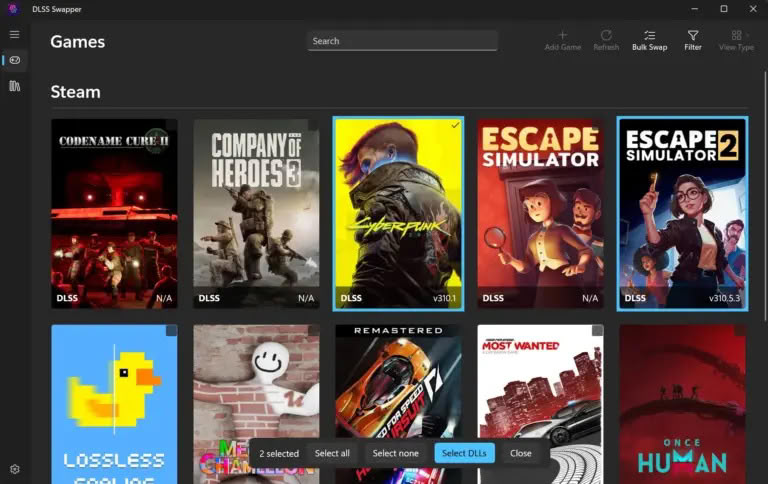
Visit the DLSS 5 Swapper GitHub page and read its requirements and installation instructions. Download the tool only if its current documentation supports your game and GPU.
Step 2: Back Up Your Game Files
Locate your game’s installation folder and back up any files the mod may change. This will help you restore the original game if something goes wrong.
Step 3: Install the Mod
Open the compatible swapper tool and follow its instructions to select your game and the appropriate installation method. Avoid manually replacing DLL files unless the tool’s documentation specifically requires it.
Step 4: Launch and Test the Game
Start the game in single-player mode and check whether the mod loads correctly. Test a familiar scene and look for visual glitches, crashes, or significant performance drops.
Step 5: Restore the Original Files if Needed
If the game stops working or the results are unsatisfactory, use the tool’s restore or uninstall option to return to the original configuration.
Note: Not every DirectX 12 game is compatible with every DLSS 5 mod implementation. Check the tool’s compatibility notes before proceeding, and never test unofficial DLL modifications in anti-cheat-protected multiplayer games.
4. How to Install the DLSS 5 Mod in DX9 and Vulkan Games
DirectX 9 and Vulkan games may require additional compatibility components. The correct method depends on the mod version and the game’s architecture.
Installing the Mod in DirectX 9 Games
- Check whether your game uses 32-bit or 64-bit DirectX 9.
- Read the mod’s DX9 installation instructions to identify the required compatibility layer, such as DXVK or dgVoodoo2, if supported.
- Back up the original game files before installing any wrapper or add-on.
- Follow the instructions for your specific configuration, then launch the game and check whether the mod loads correctly.
Guide: DLSS 5 Feeder — DX9 installation instructions
Installing the Mod in Vulkan Games
- Confirm that your chosen DLSS 5 implementation explicitly supports Vulkan.
- Install the compatible ReShade version with add-on support, following the project’s instructions.
- Configure the required Vulkan layer and add-on files as described in the guide.
- Launch the game and verify that the add-on loads successfully before testing visual quality or performance.
Guide: DLSS 5 Feeder — Vulkan installation instructions
Important Compatibility Note
These methods are experimental and may not work with every game. Do not mix files from different DLSS 5 projects or assume that a DX9 installation method will also work with Vulkan. Always follow the documentation for the exact mod version you’re using.
5. Common DLSS 5 Mod Problems and Fixes
If the DLSS 5 mod isn’t working correctly, try these troubleshooting steps.
| Problem | Possible Fix |
|---|---|
| Game crashes on startup | Remove the mod files or restore your backup. Check compatibility. |
| Mod isn’t loading | Verify that all required files are installed in the correct location. |
| Visual glitches appear | Check the mod’s settings and supported game versions. |
| FPS drops significantly | Disable the mod and compare performance with the original game. |
| Game stops launching after installation | Restore the original files and reinstall only after checking the instructions. |
Can You Uninstall the DLSS 5 Mod?
Yes. Use the mod manager’s uninstall or restore option if available. Otherwise, restore the original files from your backup or verify the game files through your game launcher.
Tip: Test unofficial mods in single-player games first, and avoid using DLL-injection tools in anti-cheat-protected multiplayer games.
6. Safety, Performance and FAQs
Is the DLSS 5 Mod Safe?
Only download mods and supporting tools from sources you trust. Back up your game files before installation, scan downloaded files, and avoid unknown DLL downloads. Unofficial mods can cause crashes or compatibility issues.
Does the DLSS 5 Mod Improve FPS?
Not necessarily. The mod may improve visual quality but can also increase GPU usage and reduce frame rates. Performance depends on your hardware, game, and mod implementation.
Does the DLSS 5 Mod Work on AMD GPUs?
Compatibility depends on the specific mod. Do not assume that an unofficial DLSS 5 implementation supports AMD Radeon GPUs; check the project’s hardware requirements first.
Can I Use the Mod in Online Games?
Avoid using DLL-injection mods in anti-cheat-protected multiplayer games. They may trigger anti-cheat systems or violate a game’s rules.
How Do I Remove the Mod?
Use the mod’s uninstall option or restore your backed-up original files. You can also verify the game’s files through Steam or another supported launcher if necessary.
Final Thoughts
Installing an unofficial DLSS 5 mod can be an interesting way to experiment with graphics technology, but compatibility and performance vary between games. Check the project’s documentation, back up your files, and follow the instructions for your specific graphics API before making changes.